





ServiceNow UI Builder is a low-code design tool that allows administrators and developers to create modern, interactive workspaces and engaging, personalized user experiences without extensive front-end development.
Instead of writing large amounts of code, you can assemble pages using reusable building blocks and connect them to live data. The core concepts that make ServiceNow UI Builder so powerful are Components, Data Resources, Client State Parameters, and Events.
Let’s take a look at them one by one before diving into a real-world use case.
The Core Concepts of ServiceNow UI Builder
1. Components: The Building Blocks
Think of Components as the visible elements users interact with on a page. These can be:
- Lists
- Forms
- Buttons
- Charts
- Text blocks
- Images
- Custom widgets
Components are reusable and can be configured to display information, collect user input, or perform actions.
Example
A “My Incidents” page may contain a:
- List component showing incidents.
- Chart component displaying incident trends.
- Button component for creating a new incident.
2. Data Resources: Bringing Components to Life
A component is only useful when it displays meaningful information. Data Resources are responsible for fetching and supplying data to components. They can retrieve data from:
- ServiceNow tables
- Scripts
- APIs
- External systems
Once a data resource is configured, multiple components can reuse the same data, making the application more efficient and easier to maintain.
Example
An Incident List component can use a data resource that retrieves all active incidents assigned to the logged-in user.
3. Client State Parameters: Storing Information on the Page
Think of Client State Parameters as temporary variables that store information while a user is interacting with a page. They help different components communicate without constantly querying the database.
According to the UI Builder architecture, client state parameters are page-level values that can be updated dynamically through events.
Example
You have:
- An Incident List component.
- An Incident Details component.
When a user clicks an incident:
- An event is triggered.
- The selected Incident ID is stored in a Client State Parameter.
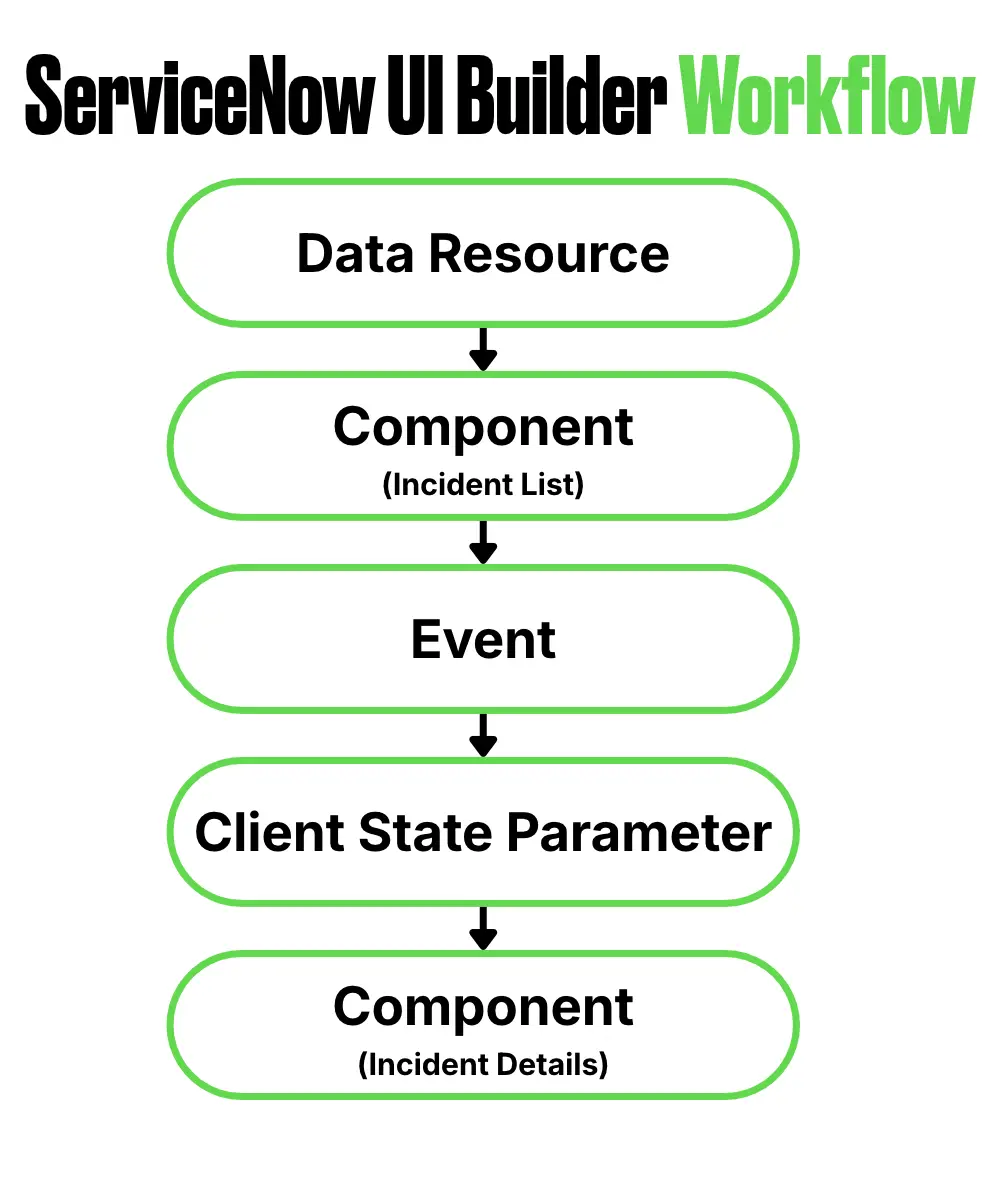
- The Details component reads that value and shows the correct incident.
4. Events: Making Pages Interactive
Events are actions or triggers that occur on a page. They allow components and data resources to communicate with each other and create dynamic experiences. Events can be triggered by:
- Button clicks
- Form submissions
- Record selections
- Data loading
- Page navigation
When an event occurs, ServiceNow UI Builder can perform one or more actions, such as refreshing data, opening a modal, displaying a notification, or navigating to another page.
Example
When a user clicks a Refresh button:
- The button triggers an event.
- The event refreshes the incident data resource.
- The list component automatically displays the latest incidents.
How Components, Data, and Events Work Together
Here’s a simple way to understand ServiceNow UI Builder: Data Resource → Component → Event → Action.
- Data Resources provide information.
- Components display or collect information.
- Events trigger actions based on user interaction.
Together, they create responsive and engaging user experiences.
A Real-World Use Case: Building an Incident Management Workspace Page
Objective: Build a two-column interactive workspace page in ServiceNow UI Builder.
- Left Column: Displays a list of active incidents.
- Right Column: Displays a form showing the full details of whichever incident the user selects from the list.
Key Technical Requirement: The page must operate without full-page reloads. Selecting an incident on the left list must dynamically update the form on the right using reactive Client State Parameters and Event Handlers.
Step 1: Create a Client State Parameter
Create a page variable to track the selected record.
- Open your page in UI Builder.
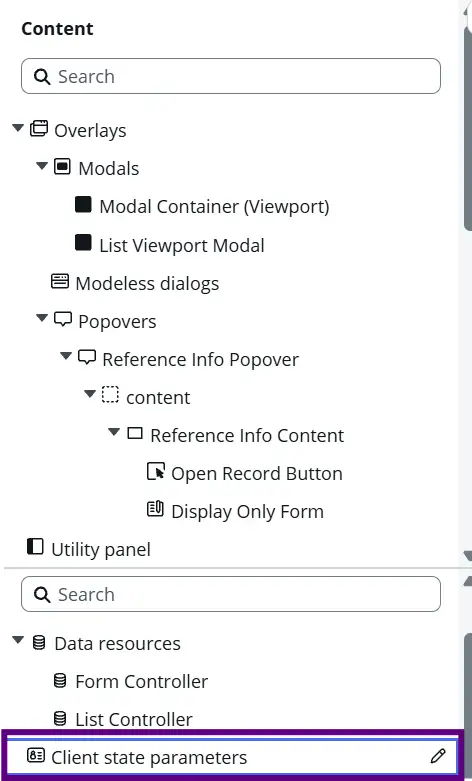
- Expand the Client state parameters panel at the bottom left.
- Click + Add.
- Set Name to
selectedSysId. - Set Type to
String. - Leave the initial value empty.

Step 2: Add Data Resources
Configure queries to pull data from ServiceNow.
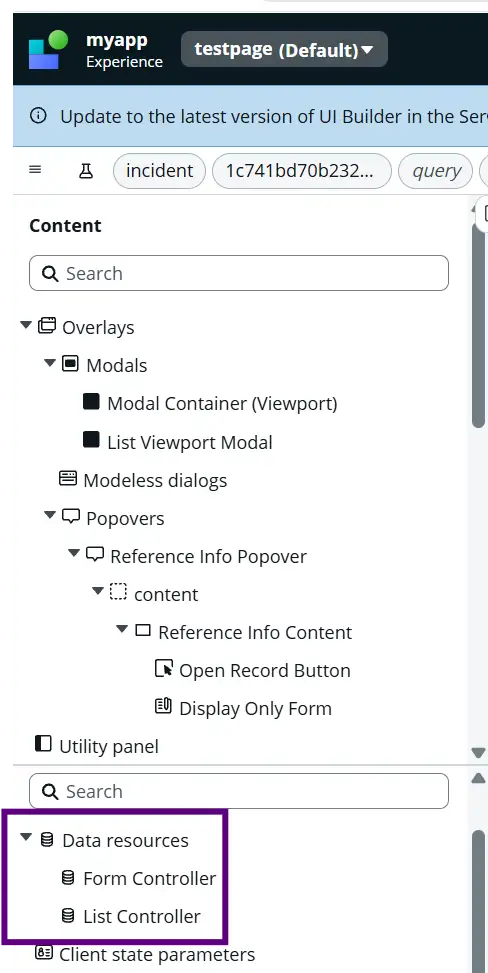
- Click the Data Resources panel at the bottom left.
- Fetch List Data:
- Click + Add, search for Look Up Records, and select it.
- Set Table to
Incident(incident). - Set Conditions to
[Active] [is] [true].
- Fetch Single Record Data:
- Click + Add, search for Look Up Record (singular), and select it.
- Set Table to
Incident(incident). - Click the Record input field, change the mode to Data Binding (
@), and enter@state.selectedSysId.
Step 3: Add Components to the Page
Add visual layout elements and bind them to data.
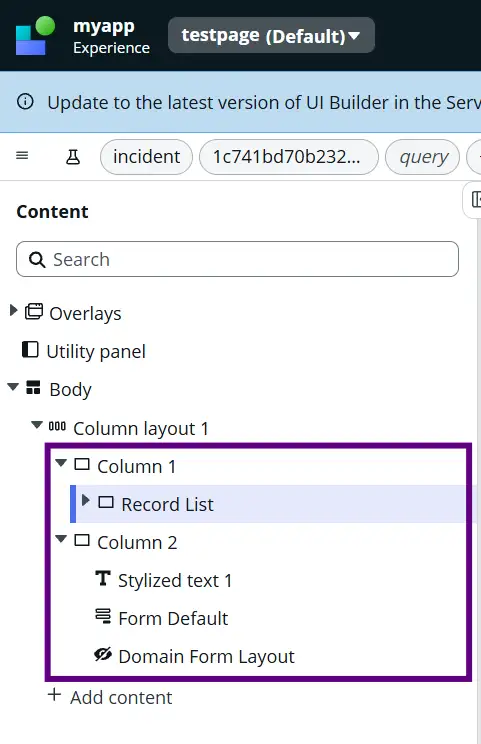
- Add a 2-Column Container layout to your page.
- Left Column:
- Add a List component.
- Set its data property to bind to your list data resource results.
- Right Column:
- Add a Form component.
- Set its Table property to
incident. - Set its Sys ID property to bind to
@state.selectedSysId
Step 4: Configure the Row Click Event
Trigger a state change when a user clicks a row.
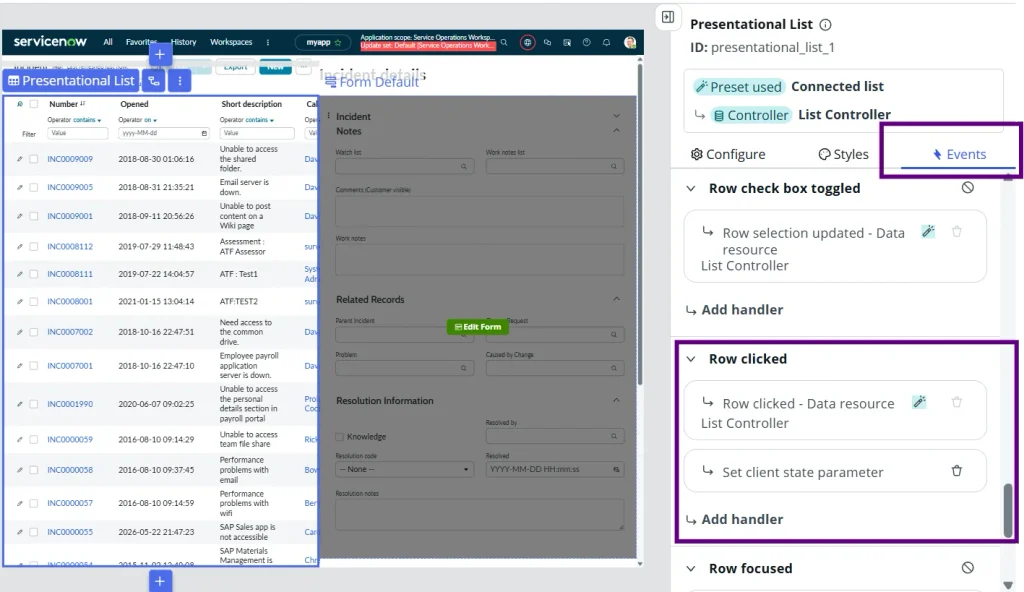
- Select the List component on the left side of your page.
- Open the Events panel on the right side of the screen.
- Locate the Row Clicked event and click + Add handler.
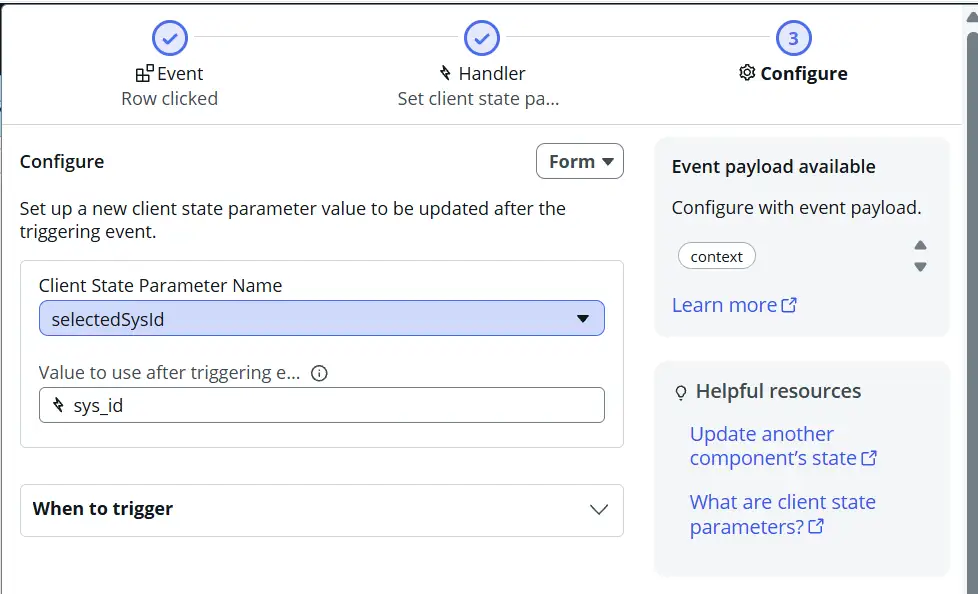
- Select the action Set client state parameter.
- Choose the parameter
selectedSysId. - Set the value to
@payload.sys_id. - Click Save in the top right header.
Step 5: Test the Page
Verify that selecting a list item updates the form.
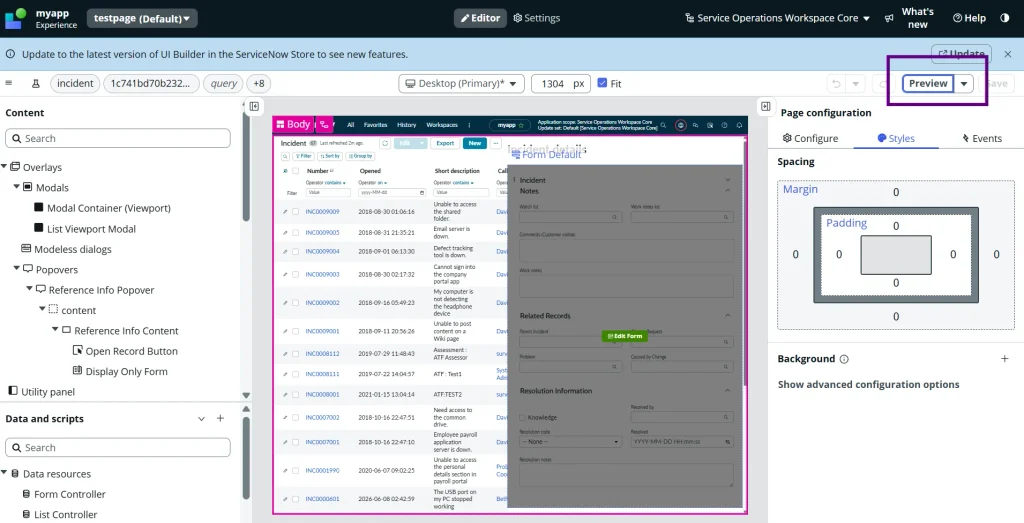
- Click Open preview in the top toolbar.
- Click any incident in the left list.
- Result: The click updates
@state.selectedSysId, which prompts the single-record data resource to fetch that incident’s details and load them directly into the form on the right.
Final Thoughts
UI Builder is ServiceNow’s low-code experience framework that helps developers create modern, interactive applications and workspaces with minimal coding. It simplifies the creation of modern ServiceNow experiences by combining Components, Data Resources, Client State Parameters, and Events.
Components provide the interface, data resources provide the information, and events connect everything. Understanding these concepts is the key to building powerful, scalable, and user-friendly applications in ServiceNow.
Whether you’re creating a service desk workspace, an HR portal, or a new workspace, mastering these fundamentals will help you design experiences that users enjoy using.