





If you have been working as a ServiceNow Admin or Developer, you will know how much time goes into navigating, searching records, opening scripts, and debugging issues. The reality is that we need fast and easy access to everything at the tips of our fingers.
Luckily, there’s an extension called ‘SN Utils’ for ServiceNow to help with all of the above with a few clicks and directly from the keyboard. For me, it’s been an invaluable tool.
What Is SN Utils?
SN Utils is a browser extension designed specifically for ServiceNow developers and administrators to improve productivity while working on the platform.
It provides shortcuts, utilities, and enhancements that allow you to:
- Navigate faster.
- Access records quickly.
- Debug efficiently.
- Perform repetitive tasks with minimal effort.
Recently, SN Utils came up with version 10. You can go ahead and download the “Community” version, which is free of cost.
Why Do We Need SN Utils?
Out-of-the-box ServiceNow UI is powerful, but it is not always optimized for speed, especially for developers working daily on scripts, configurations, and debugging.
SN Utils solves this by reducing clicks, navigation time, and manual effort.
Real-Life Challenges
In my experience, without SN Utils:
- Tables have to be manually opened (Go to Application Navigator → Tables → Search the name of the table → Open the table record).
- If we have to find out the backend name of a field on the form, you have to right-click on the field label and click on ‘Configure Dictionary,’ and it navigates you away from the current screen. Also, you can only see the backend name of one field at a time.
- When you are searching for a keyword in a script, it can become a hassle to look into business rules, script includes, etc. But with SN Utils, you can easily search for keywords in the scripts repeatedly.
- If you have to search a record with its sys_id, there is no way of doing it directly – you will have to go to every table manually and then search. However, when using SN Utils, you can just give the sys_id, and it will find the record for you from the entire ServiceNow instance.
Key Features of SN Utils
SN Utils comes with a ton of features and shortcuts that will enhance your productivity. Instead of navigating through multiple menus or opening different modules, it allows you to perform most tasks quickly and directly from your current screen.
Let’s look at some of the most useful features that developers use daily.
Slash Commands
SN Utils allows you to use / commands to instantly navigate across the platform.
Examples:
- /incident → Opens incident list.
- /sys_script → Opens business rules.
- /table <tablename> → Opens table structure.
This eliminates the need to repeatedly click through menus.

View Backend Field Names
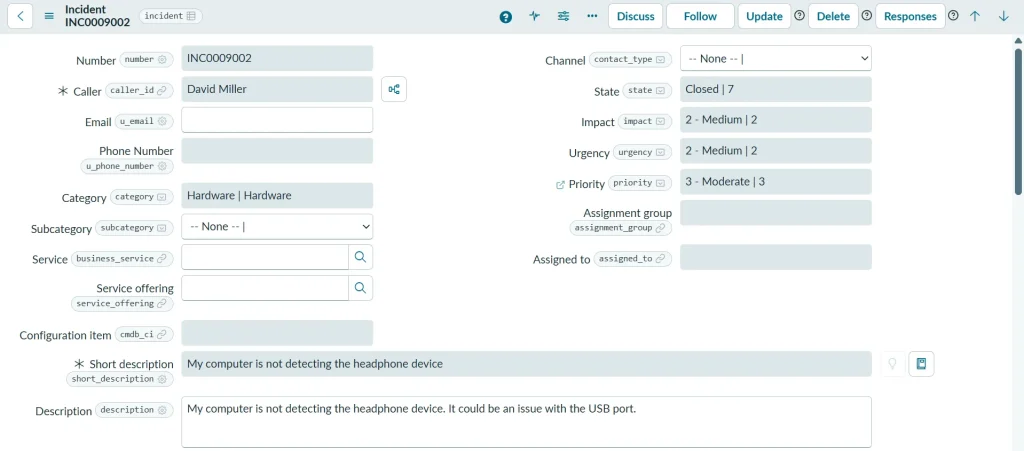
This is my personal favorite feature – you can see the backend names of all the fields by just double-clicking on the form anywhere. You don’t need to navigate to the Dictionary to find out the backend names of each field.
I still remember, after looking at this feature, I was totally impressed by SN Utils, and I installed it immediately on my browser. This is how this feature looks:
Background Scripts Output on the Same Screen
When we used to run our scripts on “Background Scripts”, ServiceNow used to navigate you to another screen where you didn’t have the visibility to your code, and your script would be lost sometimes as well. But with SN Utils, it’s easy – the outputs are next to your script on the same screen.

Copy and Extract Data Easily
With SN Utils, you can:
- Copy sys_id with one click.
- Export records quickly.
- Extract useful information without manual effort.
Debugging Utilities
SN Utils helps you debug faster by providing:
- Quick access to logs.
- Easy navigation to scripts.
- Faster testing of changes.
There are many more features and shortcuts that you can use to enhance your developer experience. For more details on each and every feature of SN Utils, refer to SN Utils Documentation.
How to Install SN Utils
There are a couple of straightforward ways to install SN Utils:
- From the Official Website.
- Go to the SN Utils website.
- Scroll down and come to the “Install in Seconds” section.

- Click on “Install Now.”
- It will automatically detect your browser (Chrome, Safari, or Edge), and it will give an option to install the browser extension.
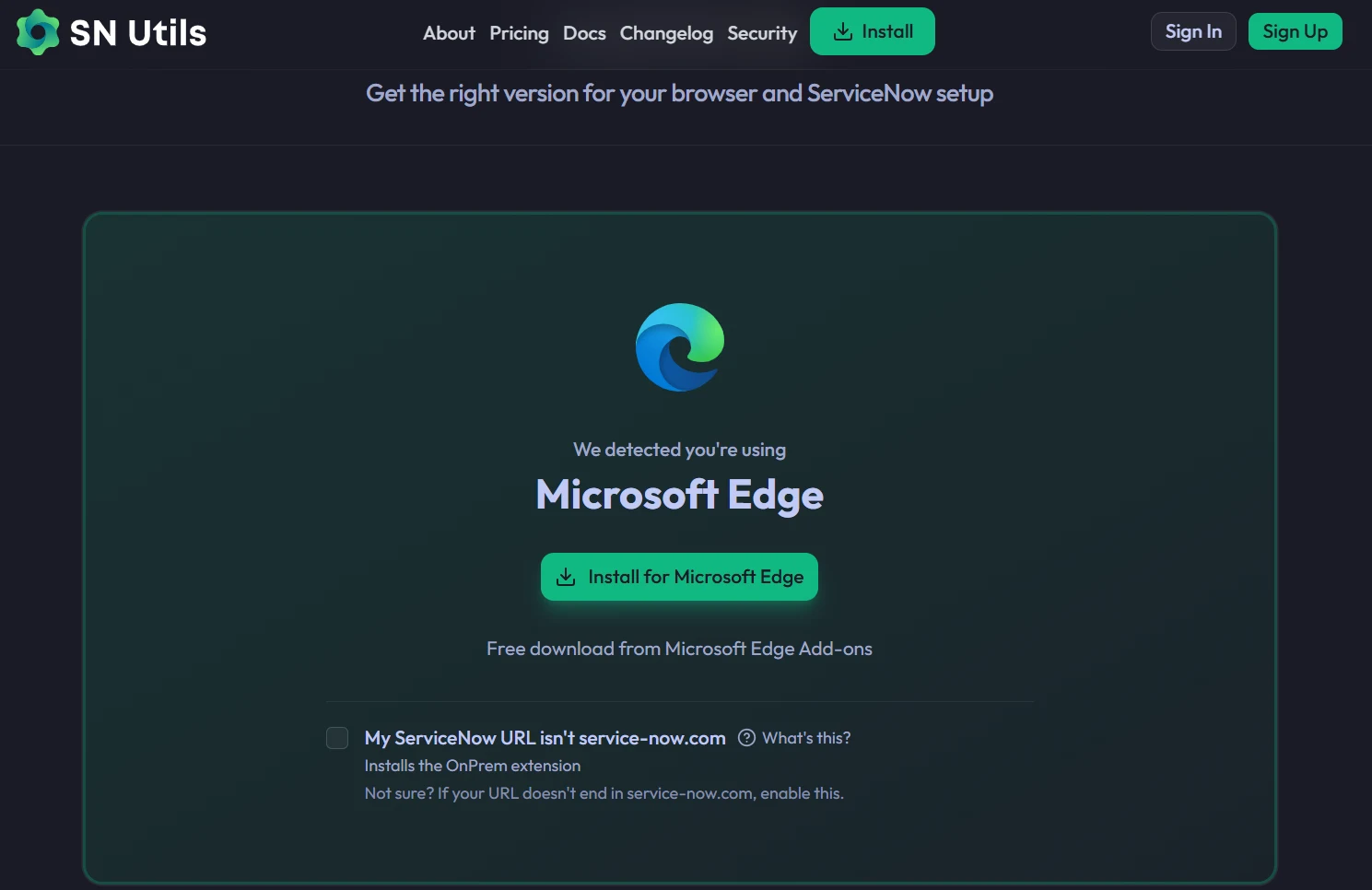
- After you click “Install for Microsoft Edge” (or your respective browser), it will redirect you to the browser’s marketplace.

- Click on “Get” to install the extension on your browser.
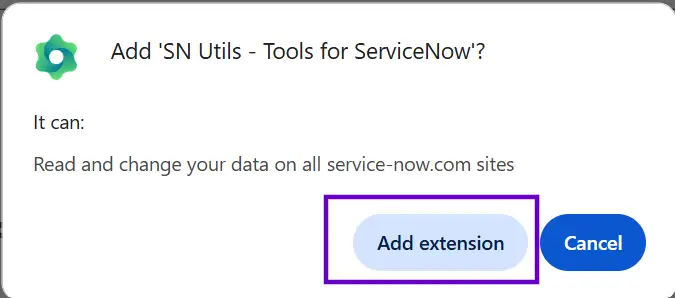
- You will get a confirmation message to add the extension to your browser.
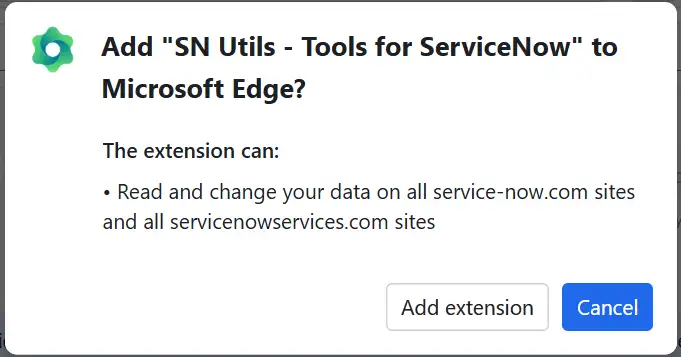
- Click on “Add extension” to add this to your respective browsers.
2. Install by Searching on Your Browser
- Go to your browser (Chrome, Edge, or Safari) and search for “SN Utils browser extension.”

- You can go to the respective marketplace. Example: Chrome Web store
- You will see an option to install the extension as per your browser choice. Example: “Add to Chrome.”
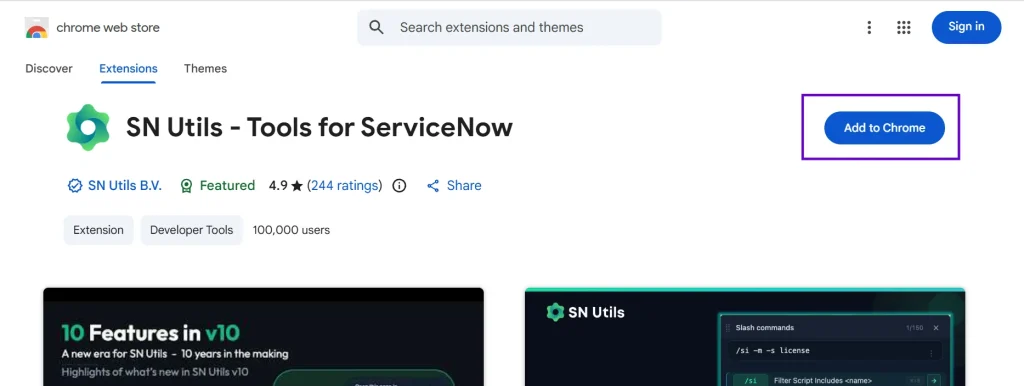
- It will ask for a confirmation – click on “Add Extension.”
Voila! It will be added to your browser. We are now ready for some action!
Quick tips for after installation:
- Pin the extension for easy access.
- Open your ServiceNow instance.
- Press / to start using slash commands.
Is SN Utils Safe to Use in Client Environments?
We are always working on client environments with critical data, and it becomes essential for us to ensure the safety of our clients’ personal data. SN Utils is a client-side browser extension, which means it runs on your browser and cannot make changes to the data on the server side.
Having said that, please take the required permissions as per your organization and client policies.
My Personal Experience With SN Utils
From my experience working on ServiceNow across multiple projects, SN Utils is one of those tools that genuinely changes how you work on the platform.
In the beginning, I used to follow the traditional approach:
- Navigating through menus to find tables.
- Searching for scripts again and again.
- Opening multiple tabs for logs, background scripts, and debugging.
It worked, but it was really slow. Then, one fine day, when I learned about SN Utils, I found that the difference was immediate.
Simple things saved a lot of time every single day:
- Typing /incident instead of navigating through menus.
- Double-clicking a form to get backend field names instantly.
- Running background scripts and seeing output on the same screen.
Over time, I realized it’s not just about saving seconds, it’s about:
- Maintaining flow while working.
- Reducing context switching.
- Focusing more on solving problems instead of navigating the platform.
Especially when working on complex use cases like debugging flows, writing scripts, or handling multiple modules, SN Utils feels like a developer toolkit built right into your browser.
However, one important point to note: SN Utils doesn’t replace your understanding of ServiceNow – it just enhances it.
You still need to know:
- What you are doing!
- How the platform works.
- Which table or script to access (backend names of tables).
SN Utils simply helps you get there faster.
Final Thoughts
SN Utils is not an official ServiceNow feature, but I feel it has become a must-have tool for many developers and administrators, enhancing daily work by:
- Reducing navigation effort.
- Improving development speed.
- Making debugging easier.
- Providing quick access to everything you need.
In a platform as powerful and vast as ServiceNow, tools like SN Utils help you work smarter, not harder.
While it may look like a small browser extension, in reality, it can have a big impact on your productivity and efficiency.