






Here is my practical guide to understanding Advanced Work Assignment on the ServiceNow platform.
I’ll walk you through the key components of AWA, with some real-life examples and configurations, and I’ll also highlight the practical ways it can streamline work distribution and increase productivity for you and your team.
What Is Advanced Work Assignment?
Advanced Work Assignment (AWA) is a seamless system provided on the ServiceNow platform, which is useful for automating assignments, such as Interactions, Cases, or Incidents.
AWA helps in routing the work items by utilizing the Service Channels and Queues configurations, based on the availability of agents, and eligibility criteria defined in Service Channels, Queues, Assignment Rules configurations, and Skills.
AWA helps to enable an automation that auto-assigns the work items to individuals based on Service Channels, Queues, and Assignment Rules configurations.
Think of AWA as a rule-based routing system that helps to evaluate any incoming tickets or work (incidents, tickets, or cases, for example). It matches with the best FIT agent based on the above criteria and assigns in real time based on the rules defined in Service Channels and Queues.
What Are the Key Components of AWA?
We will now explore Service Channels, Queues, Assignment Rules, and Presence and Availability Settings in more detail.
1. Service Channels
Service Channels define the work item table for routing, the default routing fields (like Assigned to and Assignment group), and the advanced conditions that determine which work items are eligible for automatic assignment. It helps to automatically route the incoming work to individual agents.
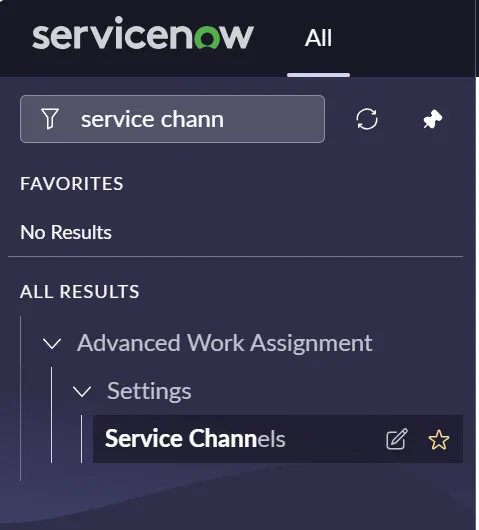
To create a new Service Channel, start by navigating to the Application Navigator menu, then search for “Service Channels” to view the list of existing service channels under the Advanced Work Assignment application menu. From there, click the New button to create a new Service Channel.
Next, provide a Service Channel name – for example, “Supplier Case Auto Assignment.” Set the Inbox Order to 1, add a short description, and specify the table on which routing will apply. You can enable the Advanced condition checkbox to define specific criteria if you want only certain cases to be routed; otherwise, you can leave it as is without additional conditions.
For example, if I want to route only supplier cases that are created via email, I can define a condition where the channel source is set to Email, as shown in the image below.

Leave some fields set to their defaults, such as the Channel group as “Default,” the Assign to field as “Assigned to,” and the Assignment group field as “Assignment Group.”
You can also set an Inbox Alert Audio to notify you when a case arrives in your queue.

I configured the default out-of-the-box (OOB) audio notification to alert agents of new assignments. Additionally, within the Capacity and Utilization settings, it is essential to define each agent’s Default capacity – the maximum number of tickets an agent can handle at a given time.
In this setup, the Default capacity has been set to 15, ensuring that once an agent reaches this limit, any new tickets are automatically routed to other agents with fewer than 15 active tickets in their queue.
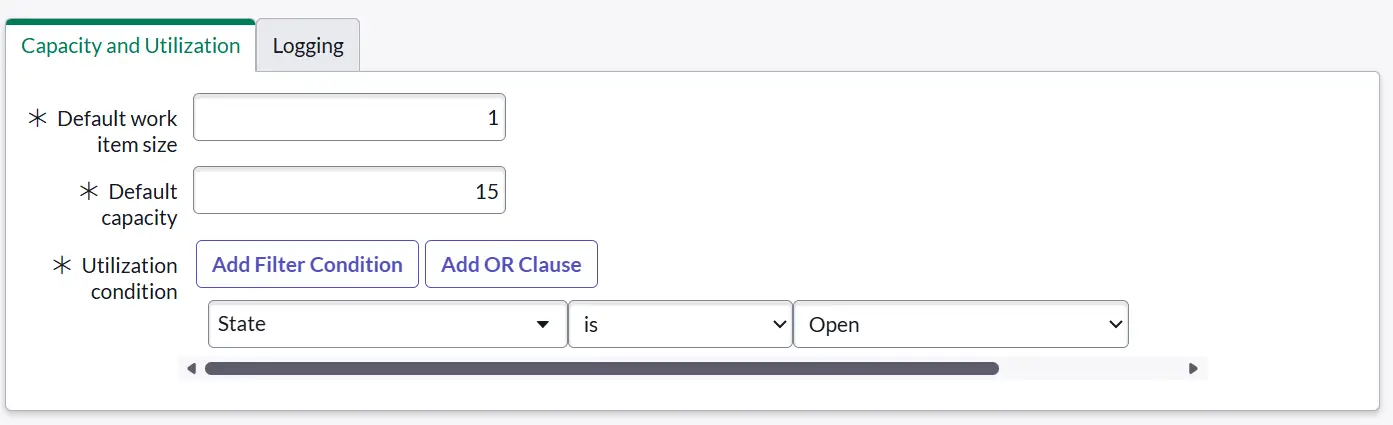
I’ve configured a utilization condition so that when it’s met, the system automatically consumes the assigned agent’s capacity.
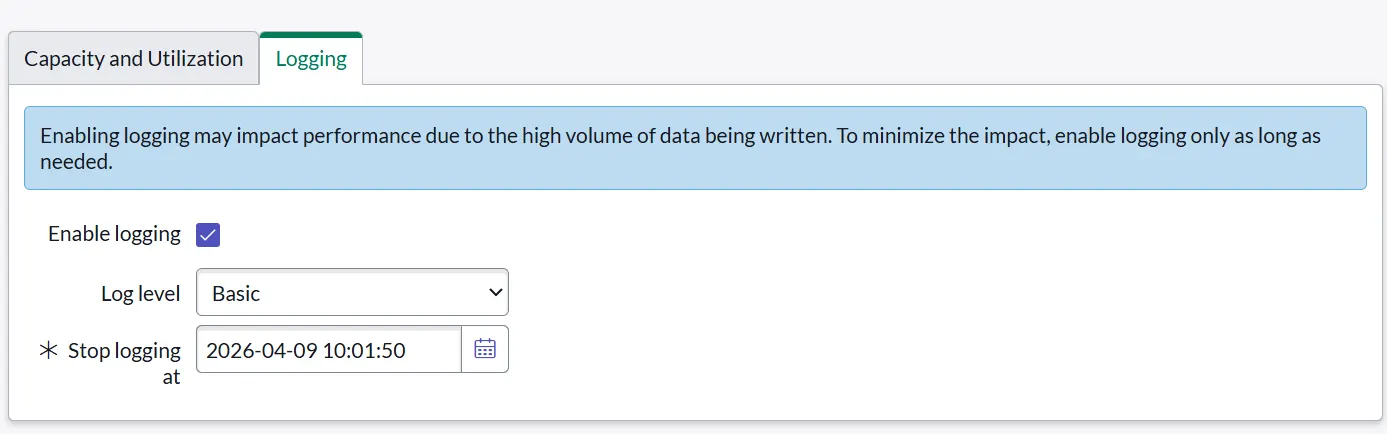
In the Logging section, Enable logging is unchecked by default. If you want to enable logging, you can check the box – but be aware that enabling it may impact performance if the ticket volume is high.
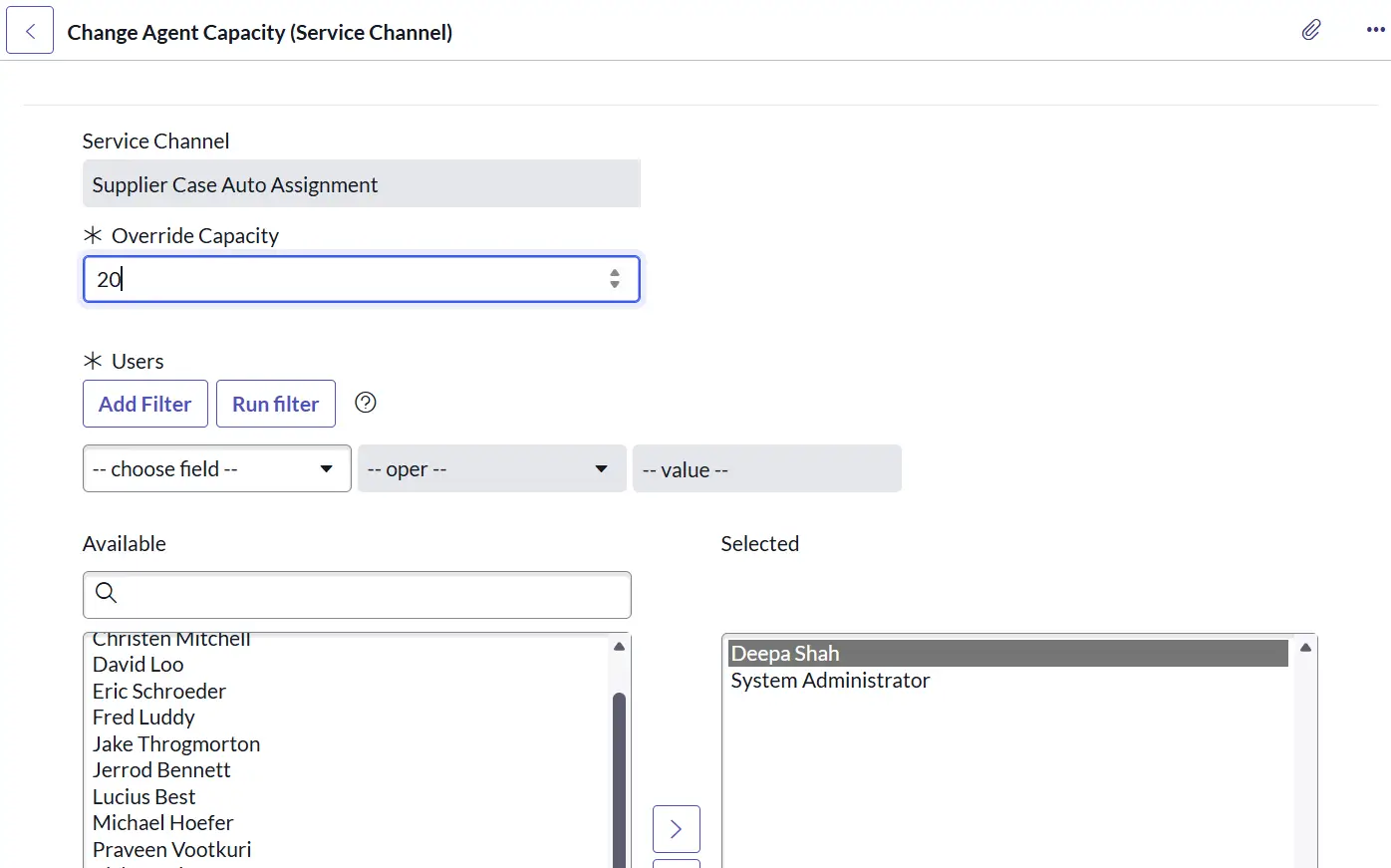
After creating the Service Channels, you have to define the Agent Capacity Override and the Inbox Layouts as well.

If you want to override the default agent capacity, you can adjust it individually based on each agent’s skill set, allowing you to tailor workloads according to their expertise.
Inbox Layout: Use this option to modify the default (out-of-the-box) ServiceNow inbox layout and customize the user interface.
2. Queues
In ServiceNow, Queues store the type of work items or cases that belong to Service Channels. An AWA admin can create queues aligned to specific Service Channels, ensuring work is organized effectively. This involves defining a clear Queue name and a short description that explains its purpose. They can also set the schedule to control when the queue becomes active.

I have defined the schedule as 24/7, which means it will automatically be assigned to agents with no specific schedule. It will run all the time and start sending the tickets to the eligible agents’ queue based on conditions set in the Service Channel and Queue.
You can also define the Work item routing conditions, such as which cases should be taken for routing automation. In the example, I have defined the Work items routing condition to route the cases where the Case type is General Inquiry, and the Target wait time is one minute, so that the system can wait for one minute before starting the assignment.
Work Item Size Override: We can override the work item size if I want to set the override value there.

Now, based on these Service Channel and Queue configurations, the work will be routed to the agents.
3. Assignment Rules
We can configure the assignment rules by providing the following information:
- Name of the rule.
- A short description of what it does.
- Configuring the assignment strategy based on your needs, such as “Last Assigned” for round-robin distribution or “Most Capacity” to route work to agents with the highest availability.
- By enabling the Auto-assign option, you want tickets to be assigned automatically without requiring agents to manually accept them from the AWA Inbox.

- Rejection handling checkbox for giving an agent the option to reject the ticket on a defined timeout with timeout presence state (Available).
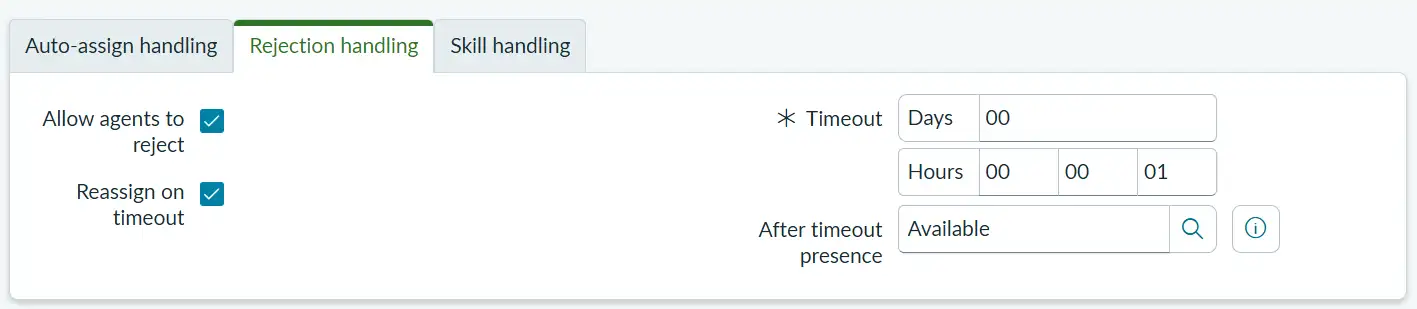
- Skill handling checkbox for enabling skill matching when the Enable skills checkbox is checked, and evaluating and enforcing skills based on skills defined.

4. Presence States
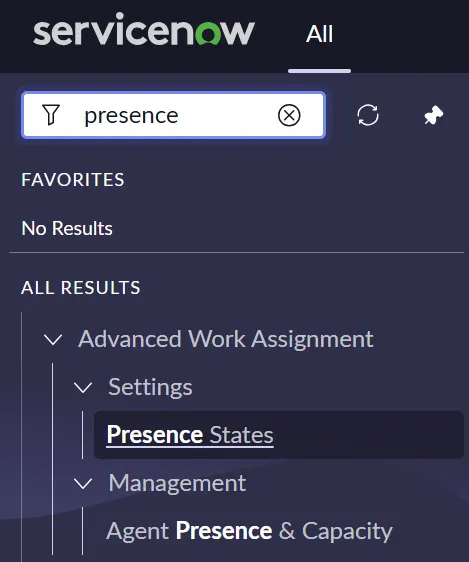
In AWA, we have default Presence States available, which are given below:
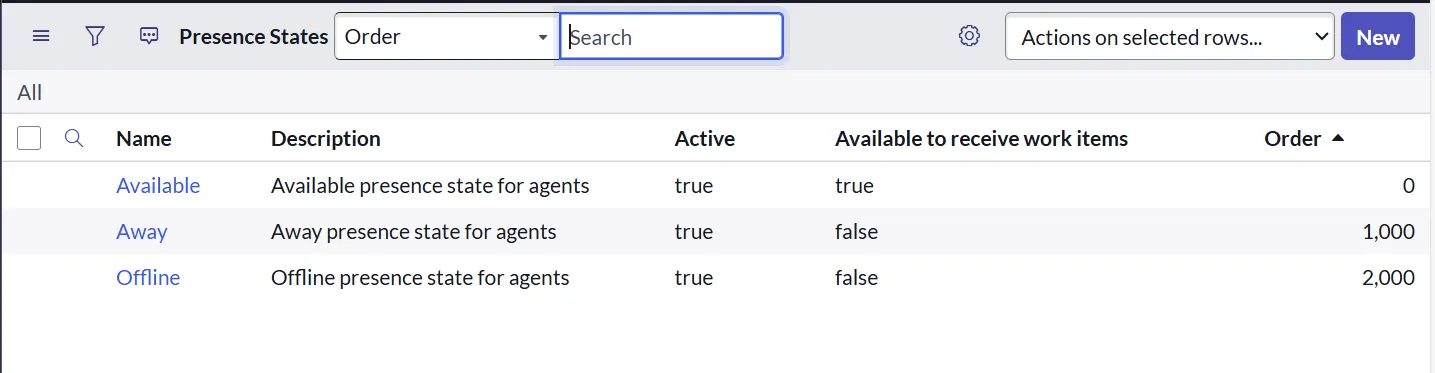
The “Available” state is used to actively route work items to an agent’s queue.
In contrast, “Away” and “Offline” states indicate that agents are not ready to receive work, so the system holds the assignment until they become “Available.”
Note: No Assignments happen in Away and Offline states, as Available to receive work items is false for these states.
How Can AWA Increase Agent Productivity?
To understand AWA’s true value, it’s important to see how it enhances agent productivity by automating work assignments and ensuring tasks are routed to the right agent at the right time. Let’s explore this through the key points below.
1. Intelligent Skill-Based Matching
AWA intelligently assigns tickets to the most suitable agents by matching their skills, availability, and capacity.
Based on the configurations done in Service Channels and Queues, the Intelligent routing is done.
Result: Faster resolutions, improved first-contact resolution, and reduced time spent on reassigning tickets.
2. Balanced Workload Distribution
AWA considers agent capacity and current workload based on defined parameters in AWA Configurations, such as the implemented agent capacity override and agent utilization conditions.
Result: Improved team utilization by balancing workloads effectively – preventing some agents from being overloaded while others remain idle. With real-time routing based on queue status, work is distributed efficiently, ensuring optimal use of every agent.
3. Real-Time Assignment Without Agent Intervention
It automatically assigns tickets as soon as it arrives in the queue if the waiting time is not defined, else it waits for the time period. Also, based on the case type or work item conditions, it acts and starts assigning the tickets.
Result: Reduces response time (improving SLAs) by eliminating manual triaging and delays, with no need for manager intervention as tickets are automatically picked based on their creation time.
4. Omni-Channel Support
It works seamlessly across multiple modules, including Incident Management, CSM Cases, Live Chat/Virtual Agent, Email, Self-Service Portal, and APIs or third-party integrations.
Result: It provides a unified agent experience by bringing all work into a single interface, reducing context switching and enabling faster, more focused task handling.
5. Reduced Manual Effort
Managers no longer need to step in for tasks like manually assigning tickets or constantly monitoring queues.
Result: Managers can focus more on optimization instead of daily task distribution, as it minimizes the need for manual intervention by team leads and managers.
Real-Time Examples of AWA
To better understand how Advanced Work Assignment (AWA) works in real-world scenarios, let’s look at a few practical examples. These examples highlight how AWA intelligently routes work, reduces manual effort, and ensures the right tasks reach the right agents at the right time.
- In a support center handling billing issues, AWA enables quick and efficient routing through automated rules, ensuring different types of cases are directed based on configured criteria.
- For high-priority incidents or outages, AWA routes them to senior team members by matching the required skills, ensuring critical issues are handled by the most qualified agents.
- In chat scenarios, AWA instantly assigns requests to the next available agent, enabling real-time routing and smooth handoffs when chats are transferred to live agents.
When Should We Use AWA?
Knowing when to use Advanced Work Assignment (AWA) is key to getting the most out of it. AWA is most effective in environments where work needs to be distributed quickly, fairly, and intelligently across teams.
- Use AWA in an environment where the ticket volume and severity are high, wherein we want the system to segregate and route the tickets based on round robin/last ticket assigned logic, etc.
- Use AWA in organizations where the support team has multiple skills defined. The system will route the items to the right skilled agent by utilizing their skills information, rather than routing from one place to another without knowing who has the right skills.
- Use AWA when there are multiple Omni-Channels supported, such as Chat, Email, Voice, etc. In this scenario, the case can be created from any source, such as Email Ingestion, Voice calls, and from Chatbot or via Self Service Portal.
Key Takeaways
Before diving into specific examples, it’s important to remember how Advanced Work Assignment (AWA) drives productivity. By automating work distribution and intelligently matching tasks to the right agents based on skills, availability, and capacity, AWA reduces delays, minimizes manual effort, and ensures a smoother, faster workflow – ultimately helping teams deliver better outcomes with greater efficiency.
To summarize, we have to first go and create the Service Channel, then Queues and assignment capacity, and Assignment Rules with configuration like Accept, Reject, and Skill Handling. Based on this configuration, when the case is created, AWA will route work to an available agent based on the configurations and conditions defined in Service Channels, Queues, and Assignment Rules.
Benefits:
- Smart and intelligent automation.
- The right work is assigned to the right agent based on skill, availability, and capacity.
- Workload optimization.
- Faster responses.
- No manual intervention.
- Omni-Channel experience support.
- Better customer experience.
- No manual triaging.
- No supervisor Queue monitoring.
Useful Resources
- Agent Chat & AWA Workshop (YouTube)
- Agent Chat, Routing, and Sidebar forum (ServiceNow Community)
- ServiceNow Advanced Work Assignment (AWA) FAQ (ServiceNow)