





Automation is no longer optional – it’s a necessity. Whether you’re handling thousands of incidents, onboarding employees, or syncing data across multiple systems, organizations need a no-code or low-code way to build, run, and maintain automated workflows. That’s exactly where Flow Designer comes in.
Flow Designer allows ServiceNow Admins, Business Analysts, and even non-technical users (citizen developers) to automate processes using a clean, intuitive, drag-and-drop interface – no scripting required (unless you want to).
Why Does Flow Designer Exist?
Before Flow Designer, most process automation relied heavily on Business Rules, Workflows, and custom scripting. These were powerful but came with challenges:
- Required deep technical knowledge.
- Hard to maintain for business teams.
- Limited visibility into logic and dependencies.
- Made upgrades risky due to complex server-side scripts.
Flow Designer was built to solve all these problems by introducing:
- No-code/low-code automation.
- Readable and reusable sub-flows.
- Simplified maintenance and scalability.
- Standardized process automation across the platform.
In simple words, Flow Designer democratizes automation in ServiceNow.
How Flow Designer Helps in Automation
Working with Flow Designer over the years, I’ve seen firsthand how much it simplifies automation on the ServiceNow platform. Tasks that once required writing multiple Business Rules, Script Actions, or complex server-side logic can now be delivered using a clean, visual interface with triggers, actions, and subflows.
One of the biggest advantages I’ve experienced is how quickly you can translate a requirement into a working automation. Instead of spending time writing and debugging code, Flow Designer lets you focus on logic – dragging, dropping, and configuring steps that are easy to understand and maintain. This also makes handovers and future enhancements far smoother, as the flow visually explains itself.
Here are the primary ways that Flow Designer enables teams to automate end-to-end processes:
- Removing manual effort: Actions like approvals, notifications, data updates, and integrations happen by drag-and-drop actions.
- Increasing consistency: Every time the flow runs, it follows the exact same logic, reducing errors.
- Reducing dependency on developers: Business teams can build and modify flows without waiting for developer bandwidth.
- Improving upgrade readiness: Flows are modular and stable across versions – making upgrades smoother.
- Enhancing integration capabilities: With IntegrationHub, Flow Designer supports integrations with:
- Slack
- Teams
- Jira
- AWS
- Azure
- and many more.
Components of Flow Designer
Flow Designer is built from a few key building blocks, all of which contribute to the creation of a workflow:
Flows
A flow is an automated process triggered by:
- Record changes (e.g., Incident created)
- Scheduled runs
- Service Catalog submissions
- Incoming data (webhooks, API calls)
Subflows
Reusable mini-flows that can be added into multiple flows.
Example: A “Send Manager Approval” subflow used by HR, IT, and Finance.
Actions
Actions are individual steps inside a flow. There are two types of actions:
- Core actions (update record, look up records, log messages).
- Custom actions (created using Action Designer).
Triggers
Triggers define when a flow should start. There are four types of triggers:
- Record-based
- Service catalog
- Application-based
- Schedule-based
Data Pill Picker
Allows you to drag data from previous steps into new steps.
Error Handling
You can configure flows to intelligently catch and respond to errors. When a failure occurs, Flow Designer can execute a series of actions or subflows to diagnose and resolve the issue.
For example, the flow can log detailed output values, send alerts to the right teams, or trigger corrective subflows – ensuring problems are addressed automatically and efficiently.
Out-of-the-Box Example Actions in Flow Designer
Here are a few frequently used actions:
- Create or Update Record: Automatically create/update incident, change request, HR case, etc.
- Look Up Records: Search a table based on conditions (e.g., find the manager of the requester).
- Send Email / Notification: Automated emails for approvals, updates, or completion.
- If / Else Logic: Branching based on conditional checks.
- IntegrationHub Spokes: Some examples of IntegrationHub Spokes may be:
- Sending a Slack message.
- Creating a Teams notification.
- Creating a ticket in Jira.
Real-Life Use Cases of Flow Designer
Flow Designer is best understood through practical use cases. While there are countless ways it can be used to create automations for any purpose, here are a couple of examples of common use cases that demonstrate how workflows can be made without writing any code.
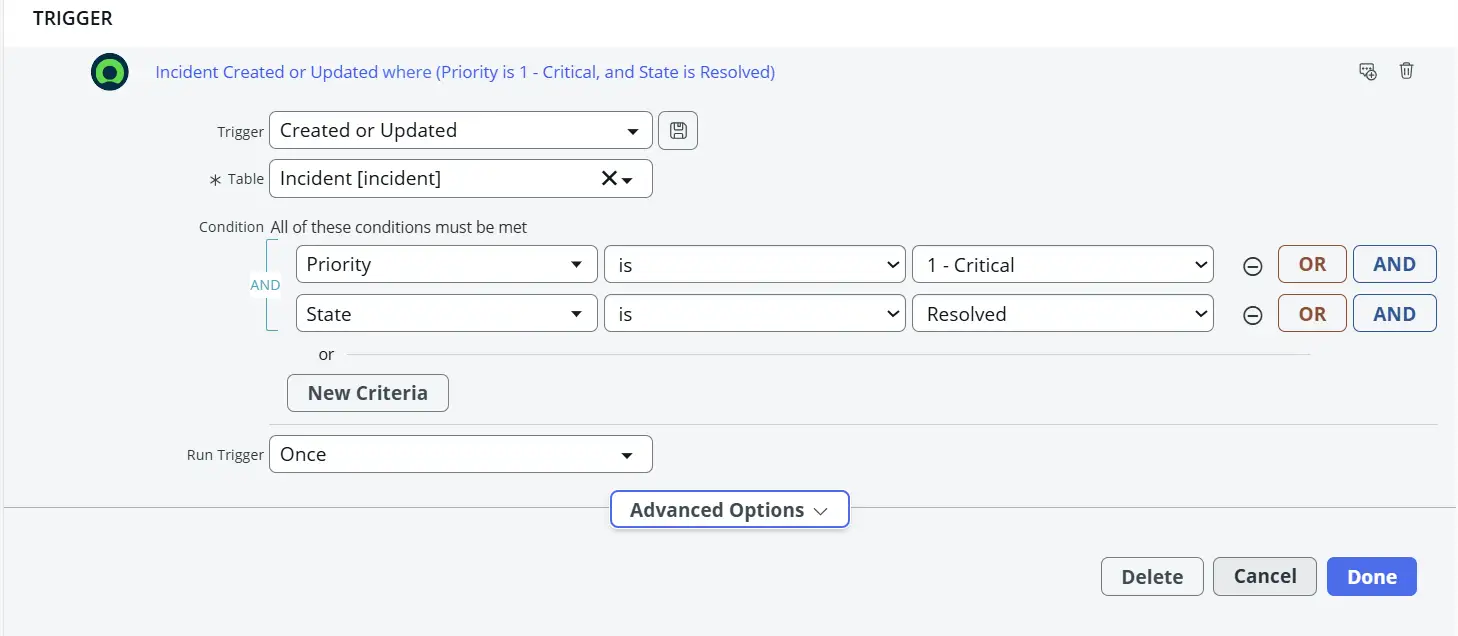
Use Case 1: Create a Problem Ticket When a Priority 1 Incident Is Closed
Trigger: Incident is resolved, Incident is Priority 1.
Actions: Create Record.
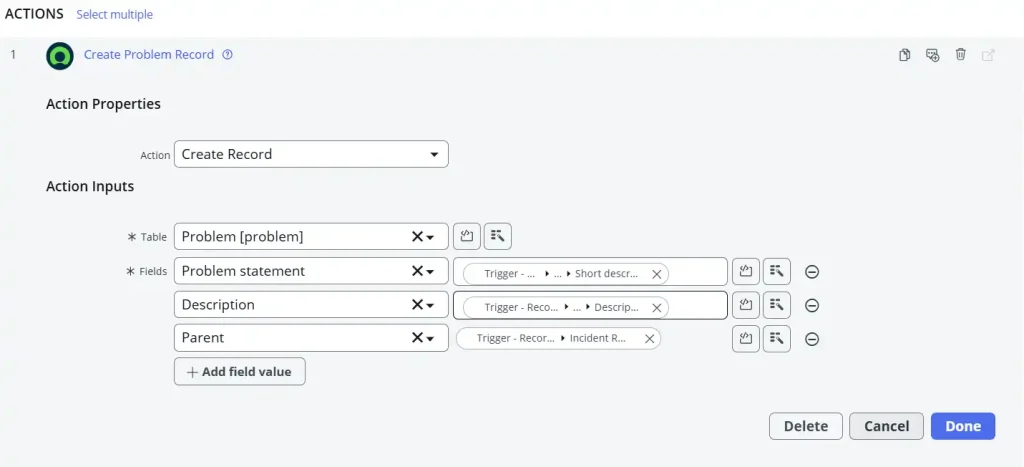
With just a trigger and a single action, Flow Designer automatically creates a Problem record and copies relevant values from the Incident – without writing even a single line of code.
Everything is achieved through simple drag-and-drop configuration, making the automation quick, clean, and fully maintainable.
Use Case 2: Automatically Add Users to a Group When Their Access Request Is Approved
Trigger: A user submits a specific catalog item requesting access (Service Catalog).
Action:
- Look up Record: Find the Group Manager in the user table
- Approval: Raise an approval request to the group manager.
- If condition: Check if the request was approved.
- Create Record: Create a new record in the ‘sys_user_grmember’ table by adding the user and the group name.
Flow Designer makes this end-to-end automation effortless. Once the approval is granted, the user is automatically added to the appropriate group – no manual updates, no delays, and no risk of missing access requests.
And again, this is achieved without writing any code, using only Flow Designer’s drag-and-drop actions to map user data and streamline the process.
Now Assist With Flow Designer: A New Era of Automation
With the introduction of Now Assist, Flow Designer has become even more powerful.
When creating a new flow, you can now prompt it by describing your requirement in plain English in the Description section.
Example Prompt: “When a high-priority incident is created, assign it to the Major Incident team, notify the on-call engineer on Slack, and update the incident with a comment.”
Based on your prompt, Now Assist will then generate:
- A skeleton of a flow
- With triggers
- Suggested actions
- Conditional branches
My Personal Experience With Flow Designer
As mentioned above, I’ve seen how Flow Designer makes creating automations on ServiceNow a much simpler, smoother, and speedier process. It reduces the grinding tasks of writing and debugging code, saving time that can be used on maintenance.
Another major benefit I’ve experienced is how Flow Designer simplifies integrations with third-party systems through Integration Hub. Whether it’s sending data to external REST APIs, pulling information from SaaS tools, or triggering actions in systems like Slack, Jira, or Azure AD, the integration steps feel just as intuitive as internal ServiceNow actions.
Instead of writing complex RESTMessageV2 scripts, you can simply select a spoke, configure inputs, and map data using pills. This has reduced integration build time significantly and made it easier for teams with limited scripting experience to work on cross-system automations.
What I appreciate the most is how Flow Designer bridges the gap between developers and process owners. Stakeholders can actually see the workflow structure, understand the logic, and give feedback immediately. This reduces rework and shortens delivery time.
With the introduction of Now Assist for Flow Designer, the experience has become even more efficient. I tried prompting Now Assist with automation scenarios, and it generated flow structures that were surprisingly close to the actual requirement. While you still need to fill in key details – like selecting tables or configuring inputs – the head start it provides is extremely valuable. The key is to give clear, simple prompts, almost as if you’re explaining the requirement to a six-year-old.
Overall, Flow Designer has transformed the way I design automations, making it faster, more collaborative, integration-friendly, and far easier to maintain. It has become a core part of modern ServiceNow development, and I genuinely enjoy working with it.
Final Thoughts
Flow Designer is one of the most powerful tools in ServiceNow for no-code and low-code automation. It helps teams build consistent, scalable, and easy-to-maintain workflows that streamline operations across ITSM, HRSD, CSM, and custom apps.
And with Now Assist integrated into Flow Designer, building automation is becoming even faster. Instead of starting from scratch, you can simply describe what you want – and ServiceNow generates a ready-made flow structure. It still requires refinement, but it’s a major leap forward.
For organizations wanting to modernize their automation landscape, Flow Designer, combined with Now Assist, offers the perfect foundation for building smarter, faster, AI-assisted workflows.